Showing posts with label SOFTWARE TIPS. Show all posts

Friday, 17 March 2017

How to create A Windows 10 recovery USB drive

Sometimes, when our computer got infected with viruses and malwares, it stops working properly. This type of infections can corrupt our operating system. So, if you keep a recovery drive of your Windows 10 operating system, it will be very easy to repair or reinstall your operating system. In this post, you will learn how to create a Windows 10 Recovery drive. I emphasis more on USB Drive than a CD drive because you can reuse your USBDrive if something goes wrong but this facility is not available  is not available with CD or DVD drive.

If you face any problem with your windows 10 operating system then you can use your USB recovery drive to repair or recover your windows 10 operating system. You should note that once you plug your USB drive to make a Windows 10 Recovery drive, all the data of your USB drive will be wiped. So, I will recommend that use a newly purchased USB drive or a drive whose data is not important for you. How much memory is needed depends on your type of the system. If you are using a 64-bit system then it will definitely demand more space than a 32-bit system. Generally a 64-bit system requires 16 GB or more space. So, I suggest you to use a USB drive which more space than 16 GB. However window will suggest how much space you need. If you are planning to purchase a new USB drive then it will better to see first how much space is suggested by your Windows 10 operating system. You will be able to know this after reading the full post.

One important thing is that you should make recovery drive before your system gets corrupted. Because it is said that prevention is better than cure. Repairing a system without a recovery drive is a complex process. There may be a easy process if you have access to another PC with Windows 10 that is working fine. You can make recovery drive through that PC and ca use in your affected PC. But, it is better to make a USB recovery drive before you see any problem in your system.

So, let’s start the step by step process by which you can make a USB recovery drive easily.

Step by step process of how to create a Windows 10 recovery drive

you have to follow the steps explained below:
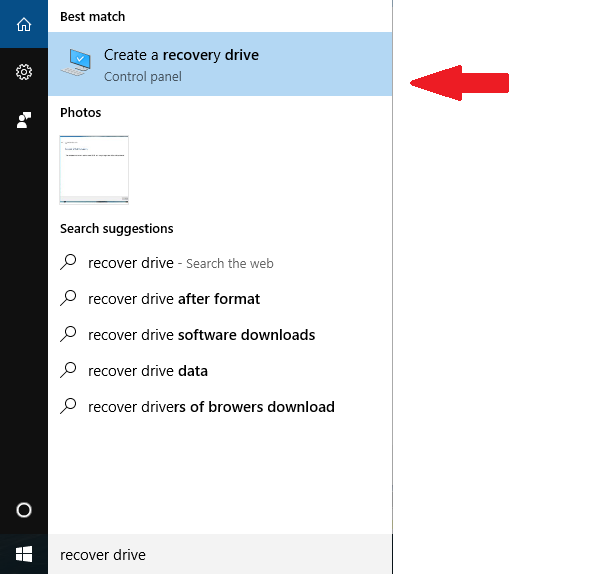
  1. Go to “search the web and windows” situated in bottom left side of the desktop.
  2. Now, you have to type “ Recovery Drive “ in the search box. Click on the search result “ Create a recovery drive”.Windows 10 recovery USB drive.
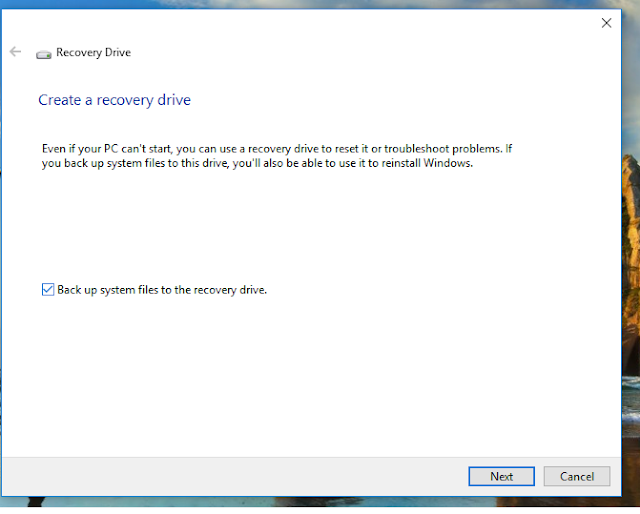
  3. A pop up window will appear which will say that its about to set up a recovery drive.
  4. Now tick mark the checkbox “ Back up system files to the recovery drive.”
    Windows 10 recovery USB drive.
  5. Click on “next”. Now, windows will calculate the space needed on your USB drive. Just wait for some time. After some time, you will see how much space is needed to make a recovery USB drive. Use the USB drive with space slightly more than this. If you are using a new USB drive then it’s ok. But, if you are using an old USB drive then it will be better to take a back up of the data of your USB Drive. Because, windows will wipe all the data of your USB drive.
    Windows 10 recovery USB drive.
  6. Now, plug in the USB drive and click on “Next”. It will take some time to create Recovery Drive.

That’s it. You have made a Recovery USB drive for your Windows 10 operating system.


Sunday, 5 March 2017

How to enable/turn on or Disable/turn off the On-screen Keyboard (OSK) in windows 10

Generally we use external keyboard for typing anything in our PC. But, it may be the situation when your keyboard is not working properly. In that situation a beautiful feature of windows 10 can help you. Windows 10 comes with a facility On-Screen Keyboard (OSK) which can be used by mouse and if you have a touch screen then by any pointing device. When you will open/enable On-screen keyboard in windows 10 then you will see a keyboard on your PC with all the standard keys available in your physical keyboard. You can easily use it and you can fulfill your purpose. So, it is very helpful when your keyboard is not working.

6 Methods to enable/turn on the On-screen Keyboard (OSK) in windows 10

There are six methods by which you can easily enable / turn on the On-screen Keyboard (OSK) in windows 10. We will discuss it one by one:

Method 1

Type on-screen keyboard in “search the web and windows” option situated in left bottom position of your window and press Enter. You will get an On-screen Keyboard (OSK). 

Method 2

In this method we will open On-screen Keyboard (OSK) through PC settings.
Step 1:  At first Go to start (windows icon) situated left in left-bottom of your window.

On-screen Keyboard (OSK) 1


Step 2: then go to Settings > Ease of Access

windows 10 Ease of access


Step 3: Now you have to choose Keyboard and move the slider to On position.

windows 10 Ease of access 2


Step 4: you will get an On-screen Keyboard (OSK) as below. 

On-screen Keyboard (OSK)


Method 3

In this method you have to press “Windows + U “key combination. > Start On-screen Keyboard.

Ease of access center


Method 4

In this method we will open On-screen Keyboard (OSK) with the help of Command Prompt.
Step 1:  At first press “Windows + X “ key combination and click on command prompt from the options.

Command Prompt osk


Step 2: Type osk in command prompt and press Enter. You will see On-screen Keyboard (OSK).

Command Prompt osk 2


Method 5

In this method we will open On-screen Keyboard (OSK) through “RUN “.
Step 1: Type RUN in search the web and windows option situated in left bottom position of your window and press Enter.
Step 2: Type osk in “RUN “  dialog box. Now you will see On-screen Keyboard (OSK) on your screen.

Method 6

Step 1:  At first Go to start (windows icon) situated left in left-bottom of your window.
Step 2: Type Windows Powershell in “search the web and windows” option situated in left bottom position of your window and press Enter.
Step 3: Windows powershell will open. Type osk and press Enter. You will get On-screen Keyboard (OSK).


Windows Powershell

How to Disable On-Screen Keyboard

Just like enabling, Disabling On-Screen Keyboard is very easy.

Step 1:  At first Go to start (windows icon) situated left in left-bottom of your window.
Step 2: then go to Settings > Ease of Access
Step 3: Now you have to choose Keyboard and move the slider to Off position.

In this way you can easily enable/turn on or Disable/turn off  On-screen Keyboard (OSK) in windows 10.


Sunday, 25 September 2016

How to convert webpage into PDF file

Suppose if you like some article on any webpage and you want to study it offline, then you are at right place. 
you will learn a very easy trick by which you will be able to convert any webpage into a PDF file.
so you have to to the following:
  1. At first go to your Google chrome browser of your computer.
  2. Now, open the webpage you want to convert into PDF file.
  3. Just press "Ctrl + P" for windows operating system and "Command + P " for Mac.
  4. you will see a print dialog box. Now go to change destination as below pic.
    How to convert webpage into PDF file
  5. Change the destination and click on "save as PDF".
    How to convert webpage into PDF file 2
  6. Finally Hit on save button.
    How to convert webpage into PDF file 3

yes you have done this. now you can read this webpage offline. In this way, you can easily convert a webpage into PDF file. 

Wednesday, 21 September 2016

How to stop automatic updates in Windows 10

windows 10 has come with some unique features. In some older versions of windows, we had choice to stop automatic updates. But, windows 10 automatically check and install the updates necessary for your system. This facility is good for the reason that this can save our system from errors and unfortunate attacks. But, for those who use limited data plan for internet usage, this is a nightmare. Their data exhaust very quickly. So, if you are among the persons who use limited data plan and do not want that windows 10 do automatic updates then i have some ideas for you.
you can stop automatic updates in windows 10. There are three ways for this. i will explain all the three one by one.

windows 10

By setting your data connection as metered connection

windows 10 has come with a new facility by which you can set a connection  as metered and it will stop using automatic updates. For this, you have to follow the steps mentioned below:

For Wi-Fi connection 

  1. At first, open the settings app or just press Win + I
  2. Now go to "Network and Internet ".
  3. open "Wi-Fi"and click on "Advanced Options ".
  4. Now toggle "Set as metered connection to "On".
For ethernet connection, you will have to to registry edit. It is risky if you don't have a good knowledge of computer.

By Run command

  1. Press "Win + R ". it will open Run command.  You have to type " sevices.msc". Now hit "Enter"button.
  2. Now find  the "Windows Update " service . open it.
  3. go under "General "tab, find "Startup Type " ..Now, change it to "Disabled
  4. Restart your computer.

Using Group Policy Editor

This method is only for windows 10 Education, Pro, and enterprise edition. Windows 10 Home user can't apply this method.
  1. Press "Win + R ". it will open Run command. Type "gpedit.msc". Now hit "Enter"button.
  2. Now go to Computer configuration > Administrative templates > windows components > windows update
  3. Open "windows update "and change the configure Automatic Updates setting to "Notify for download and notify for install ".
  4. Press "Win + I "to open settings app and go to Update and security > Windows updates. Click on "Check for updates ". now, your new configuration will apply.
  5. Restart your computer.
In this way you can control automatic updates of windows 10 and you can save your internet data.


Monday, 22 August 2016

Disable Cortena on windows 10 lock screen in three steps

Cortena is very useful app in windows 10. It is enabled in windows 10 by default. But, some persons don't like cortena. If you are among those persons then just wait. You can disable cortena on windows 10 lock screen in 3 easy steps.
cortena windows 10

Sunday, 24 July 2016

How to download Google Maps for offline use


In this post, you will learn how to download Google Maps for offline use. Today, Google maps is very popular for navigation during travelling. But, sometimes we pass through the areas where we don't get network or WiFi signal.

How to factory reset in windows 10

windows 10

In this post you will learn how to factory reset windows 10. Sometimes we see some problems in our operating system and we fail to recognise the reason of the problem. In this case, factory reset may help you.

Sunday, 19 June 2016

How to do System restore in windows 7

windows 7

System restore in windows 7 may be your easiest way to troubleshoot your windows problem. If your computer started behaving abruptly and you are not able to understand what is the problem then simply move towards system restore.

Saturday, 18 June 2016

How to do system restore in windows 10

windows 10

System restore is a special feature provided by Microsoft windows to revert the computer's settings to a previous point in time. Suppose you have installed a new software to your PC and after that you feel that there is some problem in proper functioning of your PC then you will uninstall that software. But, if problem persists even after uninstalling then system restore is the best solution. After system restore, your computer will reach at that previous state which you will choose. Only your system will revert, your data on computer will be intact.

Saturday, 14 May 2016

Boot into safe mode on windows 8 and windows 10

windows 10

Safe mode is the option which is used in troubleshooting windows operating system. In safe mode, computer starts with limited functionality. Windows starts with only the basic files and drivers that are necessary to run windows. So, if you want to troubleshoot your PC then it will be better to boot it into safe mode. In windows versions prior to windows 8,

Sunday, 8 May 2016

How to change IP Address

nternet

There are many methods by which you can change the IP address of your PC. Some of the methods are very easy. Persons without any technical knowledge can do this. So, let's start with those easy methods:-

Tuesday, 26 April 2016

18 ways to speed up google chrome

Google chrome is popular because of its fast browsing speed. Some distinct features make it faster than other web browsers. But, if you will not  handle it with care then after some time, you will feel that google chrome is running very slow. Even after using fast internet connection your browser will take a lot of time to load the pages. So, problem is not with your internet connection, it is your browser that needs some remedy.

Monday, 18 April 2016

Enable Hibernate mode in windows 10

Hibernate mode is very useful because it  saves power usage of your PC or laptop. Another benefit is that it saves the work same as you left. But, unfortunately windows 10 has not given this facility. Don't worry, I have come with a trick to enable Hibernate mode in windows 10. So, to use this facility in your latest windows operating system, please follow the steps mentioned below:

Sunday, 17 April 2016

Enable hidden Administrator account in windows 7,8 and 10

There was an Administrator account in windows xp. But, you don't find it in windows vista, windows 7,windows 8 and windows 10. If you have used windows xp then you can understand what are the advantages of this Administrator account. You need to run as administrator in many cases of troubleshooting.

Sunday, 10 April 2016

How to make command prompt transparent in windows 10

windows 10

Windows operating system had travelled a long way to reach the era of windows 10. Microsoft has come with many new features in windows 10. I have already discussed many tips and tricks related windows 10 in previous posts. Today, you will learn a new trick to make your command prompt transparent.

Saturday, 9 April 2016

How to schedule whatsapp messages on android without root

whatsapp

Social media is always dominated by some key players in each era. There was a time of Orkut then came Facebook and now its the era of whatsapp. Mark zukerberg identified the nerve of the time and purchased whatsapp. So, you can see whatsapp in almost every smartphone today. I am here with a new trick for you related to whatsapp. Suppose tomorrow is your friend's birthday and you want to wish him at sharp 12 o' clock in the night. Then what is the way ? You have to wake up or wait till

How to fix the duration of windows 10 notification display

Sometimes you feel that notifications are displaying more than required time span. But,you are helpless. Don't worry, now you can fix the duration of notification display. I will describe you the easiest method:

Friday, 8 April 2016

How to remove ads from windows 10 lock screen

Some users of windows 10 is complaining that Microsoft is running ads on their lock screen. Most of the people don' t like this and they want to get rid of it. 
So I will give you the trick by which you will be able to remove ads from windows 10 lock screen:

Monday, 4 April 2016

HOW TO SET LOGIN TIME LIMITS IN WINDOWS

you can set login time limits in Windows. It is very easy and useful. If your child is in habit of using PC all the time and his study is being affected by this habit then this trick will work for you. We can set time limits for user accounts in windows. I will describe this trick step by step: